
Helping Your Boyfriend Controls
We find the right input, follow the on-screen prompt and keep a useful checkpoint for dialogue, doll work and timed tasks.
Quick reference
- MousePoint, choose and drag
- Select an object or carry a loose piece to its slot.
- Click / EnterRead and choose
- Advance dialogue or select a visible response.
- Arrows / SpaceFollow timed prompts
- Use the input and rhythm shown by the current task.
- Bell menuSave, Load and Settings
- Open the bell at the top of the game.
01 / Dialogue & the bell menu
Read the conversation; open the menu when we need it.
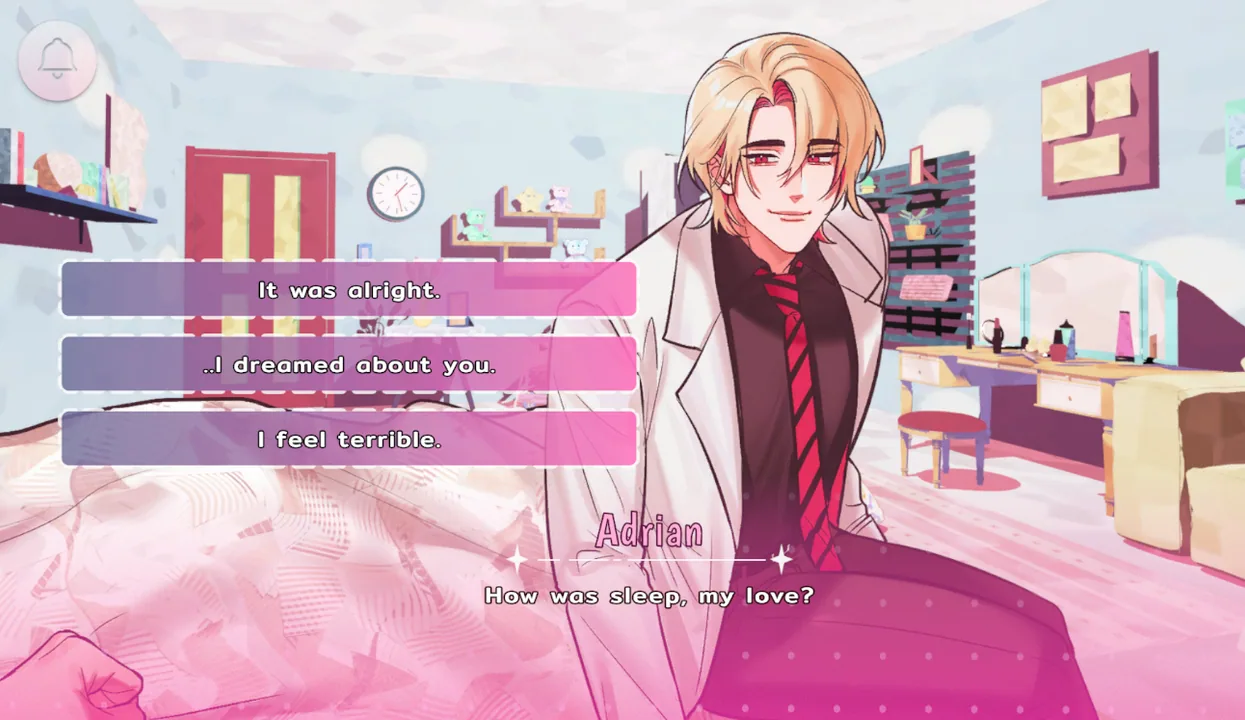
- Read before choosing
We let the current line finish and read the visible responses. Left click or Enter advances text; when a response is available, we select the one we mean to choose rather than clicking repeatedly through the scene.
- Use the dialogue tools
In the official controls, Space hides or restores the dialogue box, L opens history and A toggles auto-play. We use history for a missed line and hide the box when we want a clearer view of the artwork.
- Open the bell for menu options
We click the bell at the top of the game for Save, Load and Settings. Before an interactive sequence, we check that our checkpoint exists and that we know which slot we intend to return to.
Holding Ctrl or pressing Tab skips text in the official controls. We use skip for familiar dialogue on a replay, not as a way to rush an unfamiliar instruction. We stop skipping when a choice, object or timed task appears. History can recover wording, but it cannot perform a physical interaction that we passed over.
02 / Doll work: tools, pieces & slots
Choose the tool, move the loose piece and check its slot.
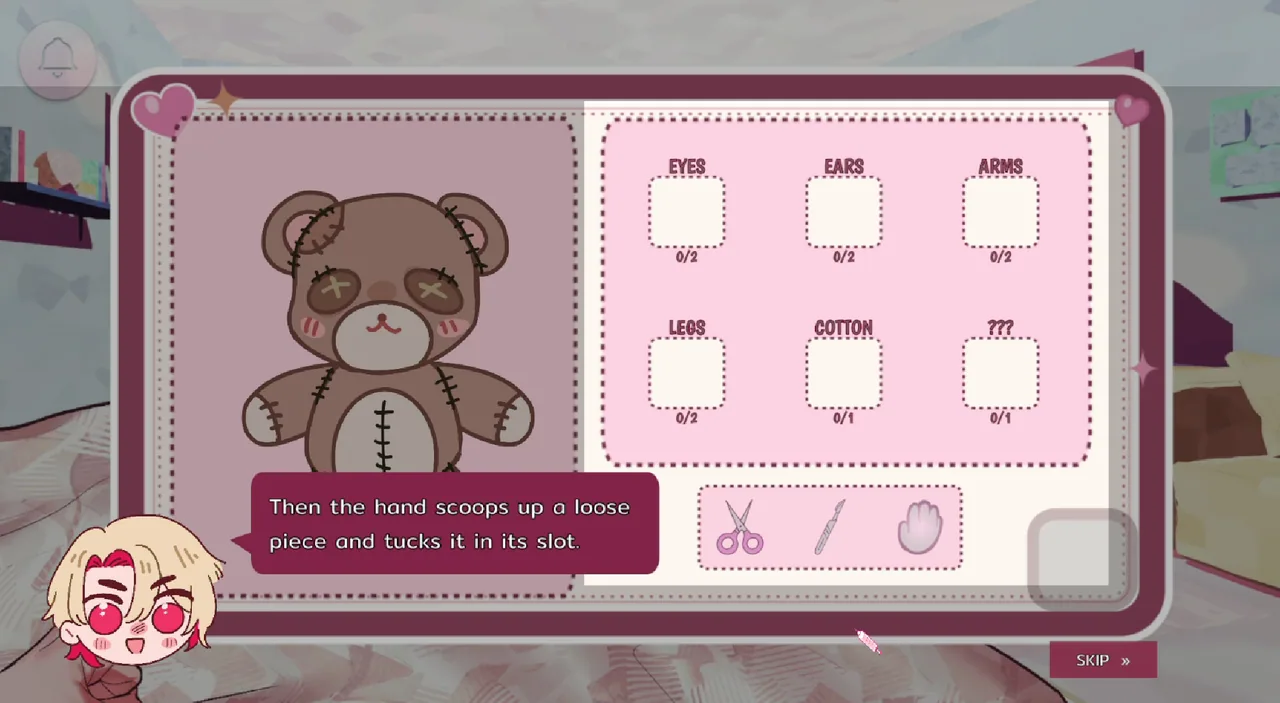
- Choose the active tool
We read the tutorial for the tool currently selected. The scissors, pointed tool and hand have different jobs; clicking the same part with another tool is not necessarily the same action.
- Hold and carry the loose piece
Once the piece is ready to move, we begin near its centre, hold the primary mouse button and carry it in a continuous motion. We watch the piece itself rather than only the pointer.
- Release inside its matching slot
We move the object into the labelled receiving area before releasing. A loose part needs its matching slot; dropping it beside the slot is not enough.
- Check the counter before continuing
We look for the receiving slot or counter to change. If it did not, we first check the selected tool, starting position and destination before trying again.
The pictured workspace has the doll on the left and labelled collecting slots on the right. Eyes, ears, arms and legs each have a two-piece counter; cotton and the mystery slot each have one. Those counters give us a useful visible check: the task is progressing when the expected piece is registered, not merely when our pointer reaches the box.
03 / Timed tasks
Different prompts can require different rhythms.
Directional prompts
We watch the arrow currently shown and use that direction. We do not replay a memorised sequence from another attempt. Dedicated arrow keys can be easier to reach than a compact keyboard's function layer.
Space prompts
We use Space when the task asks for it, watching its instruction and feedback. A timing task and a repeated-input task are not interchangeable: one press, a held key or repeated presses should not be treated as a universal rule.
We prepare our hand position before the prompt begins, then keep our attention on the current symbol, timing indicator or progress feedback. If input does not seem to register, we check that the embedded game has focus before concluding that we missed the timing. Pressing another key repeatedly can make the original problem harder to recognise.
Version 1.0.1 adds selectable gameplay difficulty. If the available setting makes timed actions uncomfortable, we choose a less demanding level and retry. We check the difficulty options actually shown in our build; a separately hosted browser player should not be assumed to have the same settings as the official download.
04 / Save, retry & continue
Keep story decisions separate from mechanical retries.
- Before the task
We save before an interactive sequence when the menu allows it. We keep a separate earlier slot for a relationship or investigation decision rather than overwriting our only useful checkpoint.
- Check the result
We look at the next screen and ask whether the task completed, the story continued or a game-over screen appeared. A missing sound alone does not establish that our input failed.
- Load the nearest checkpoint
For an execution mistake, we return to the task checkpoint. For an earlier story choice, we return to the slot before that choice. Repeating a late save cannot undo a decision already recorded in it.
We label our slots by purpose: before doll work, before a timed task or before a story decision. That makes recovery clearer than a list of almost identical saves. We keep a completed run separate from a working attempt, so experimenting does not erase the result we wanted to revisit.
- Save before a difficult task when the menu is available.
- Read the result on screen before choosing a recovery step.
- Keep the early story checkpoint instead of overwriting every slot.
- Stop skip or auto-play before following a new task instruction.
Common issues
Version & device notes
The official release supports Windows, macOS and Android. We use the controls displayed by the version we are playing. A touch interface can differ from the keyboard layout; we do not assume that every arrow prompt has an invisible swipe equivalent or that a desktop shortcut applies on a phone.
For a keyboard-based timed task, we check our input device and any function layer before the scene. If difficulty choices are available, we use them to make the required input more manageable. We check Settings for the options our build actually offers rather than assuming a remapping feature is present.
Before refreshing or leaving the browser, we check our saved progress in the game's menu. We do not assume that a fresh browser, private window or different device shares the same save slots. When an interaction is the problem, we try the current screen's instructions and Load before treating a full restart as the first solution.